Reading aloud in the app
How to use the Read Aloud feature in the Cliarly app
Give your eyes a break and take your reading tool with you in your pocket. Here's a simple guide on how to turn texts, images, and PDFs into audiobooks on your phone.
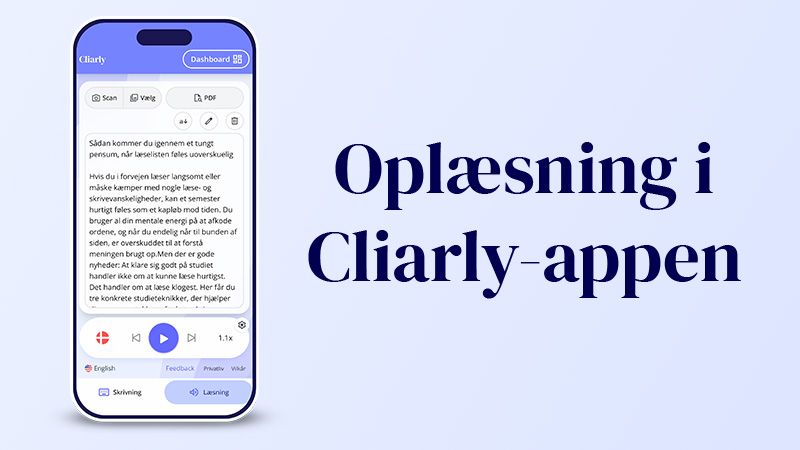
With the Cliarly app on your smartphone, you always have your reading tool right at hand. Whether you're sitting on the bus, going for a walk, or just want to give your eyes a break after a long day in front of the screen, you can use your phone to transform everything from news articles to PDFs and physical papers into your very own audiobook.
Here is your step-by-step guide to how the read-aloud function works in the app.
1. Make your own audiobook from articles on the web
When you read news or articles online, you can easily send the text directly to the Cliarly app and have it read aloud:
- Open a website with an article in your browser on your phone (for example, DR News or Cliarly.com).
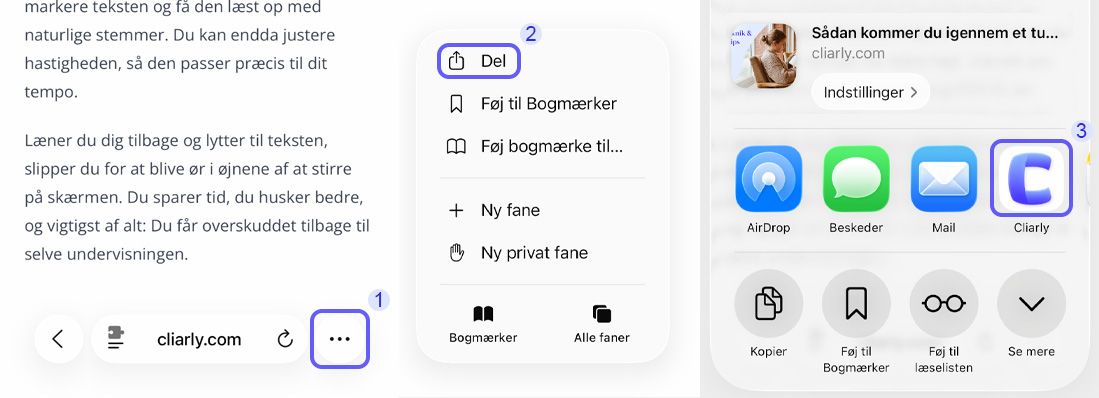
- Tap the three dots and then the "Share" icon (the square with an arrow pointing up).
- Find and select Cliarly in the list of apps. If you don't see the app, tap "More" and search for Cliarly.
- Now your text is automatically copied into the app and is ready to be read aloud!
Tip: You can easily exit the app or lock your phone and put it in your pocket while you listen. Cliarly will continue reading in the background, just as if you were listening to music or a podcast.
2. Get PDFs, documents, and images read aloud.
It's not just text on websites that Cliarly can help you with. You can also use the app to have files and physical papers read aloud. Just above the text box inside the Cliarly app, you'll find some small icons you can choose from:
- Camera icon: Scan a physical document (e.g., a letter) with your phone's camera and have it read aloud immediately.
- Image icon: Upload a picture of a text from your phone's camera roll.
- Document icon: Upload a PDF or another text document directly from your files on your phone.
Are you getting an error message? If the app says "You have denied access to photos or the camera," it's fortunately easy to fix. Go to Settings on your phone, scroll down until you find Cliarly, and give the app permission to use your photos and camera. Then you're good to go again!
3. Change the language and get a natural pronunciation
Are you reading a text in English, Norwegian, Swedish, or German? Language should never be a barrier to acquiring new knowledge.
When you have inserted a text into the app, you can have it read aloud with natural, authentic voices in the respective language. Simply tap the flag icon at the bottom of the screen. Here, you can select the language the text is written in to ensure the absolute best listening experience and completely correct pronunciation.
4. Adjust the speed to suit you
We all read and understand at different paces. Some prefer a slow pace to digest the content, while others want to get through the text more quickly. Therefore, you always have full control over the speed.
The display at the bottom of the app shows 1.0x by default. Tap the number to open the speed selector. From here, you can adjust the purple dot up or down until you find precisely the pace that suits you. Drag it up to listen faster and down to listen slower.
Haven't downloaded the app yet?
Find direct links to download the Cliarly app for your device in our article: Download Cliarly for iOS or Android.
If you have any questions, we are always ready to help.