The Cliarly-app
How to give Cliarly access to the microphone in the phone app
Are you getting an error message when you try to dictate a text in the app? Here, we show you how to give Cliarly access to your microphone with just a few clicks, so you're ready to use speech-to-text.
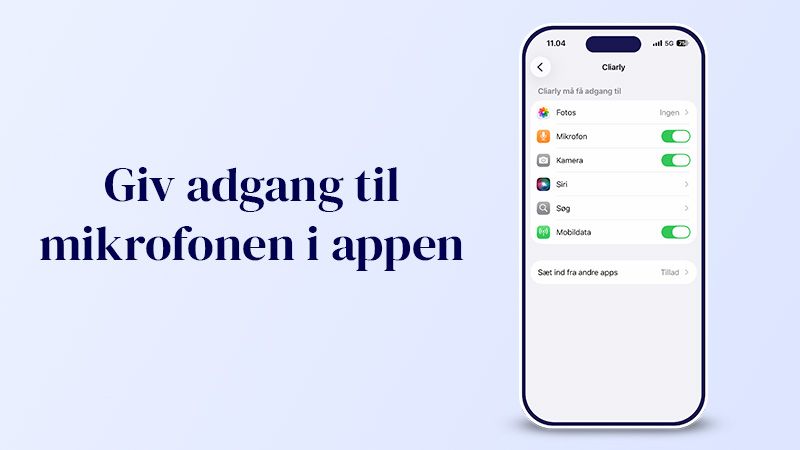
Are you getting an error message about missing access?
When you tap the microphone icon in the app for the first time, your phone will typically ask for permission to use the microphone. If you accidentally tap "No" or "Deny," you will receive an error message the next time you try to use the feature.
Step-by-step: How to turn on the microphone
Follow these simple steps to grant the app access so you can start dictating your texts:
- Close the Cliarly app and go to Settings (the small gear icon) on your phone.
- Use the search bar at the top of the settings and search for Cliarly (or scroll down to the bottom of the settings until you find the app in the list).
- Tap Cliarly to open the app's permissions.
- Find the Microphone item and tap the button (or "slider") to turn it on. The button usually lights up green when access is granted.
Now you can open the Cliarly app again. When you tap the microphone icon, the app is ready to listen and transform your words into sharp and precise text.
Tip: Remember that you can always use Cliarly Corrected (our AI correction) afterward to fine-tune the text you have dictated, ensuring the punctuation and flow are perfect.
Is it still not working? If you are still having problems with the app, our support team is always ready to help you get started.